
My Bird Album
The New Sighting form allows you to add an entry for a sighting or create an audio note.
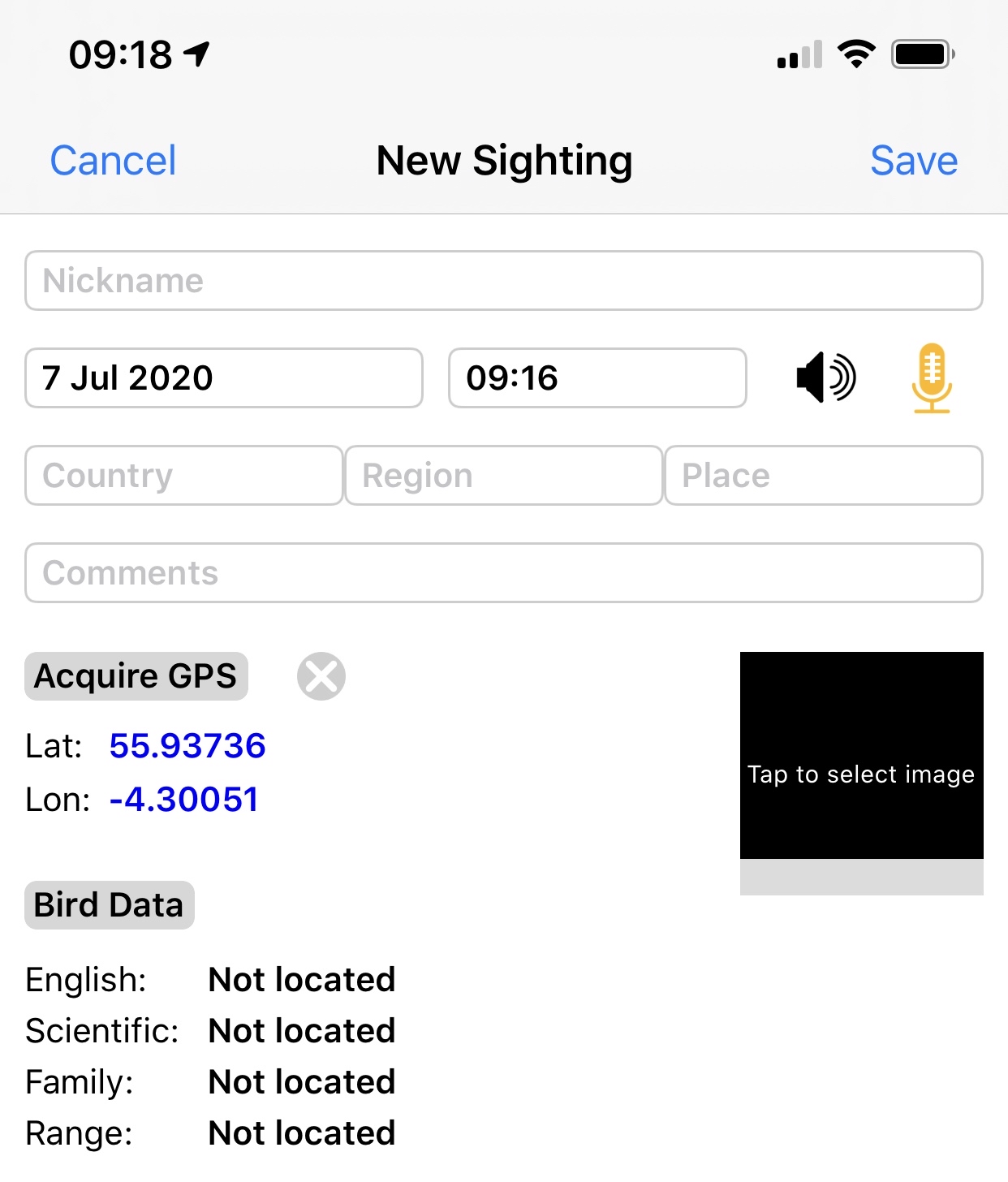
Nickname - this is used as the label for the thumbnail of the sighting. If you find the bird data from the database before you provide a nickname then the bird's English name will be used. The text in a thumbnail's label is scaled to fit across the width of the thumbnail. After scaling if it is still too large to fit then it will be truncated (shown as ...).
Date and time - will initially be the current date and time. After selecting a photograph the date and time will change to the date and time the photograph was taken. Click on date or time to set manually.
Microphone and speaker icons are used to create and listen to audio notes. An audio note is an entry for a sighting made in the field which enables you to record the name of the bird you are observing. At the same time as the audio note is created the current GPS position is logged.
Tap the microphone icon to start recording - it will turn red to remind you that recording is in progress.
Tap the microphone icon a second time to stop recording - it will turn amber to remind you that there is a recording associated with the photograph.
Tap an amber microphone to delete the recording.
The speaker icon is only visible after a recording is made, tap to listen to the recording.
Location fields: country, region and place, which will initially be the same as the previously created sighting, enables you to classify your sightning regionally.
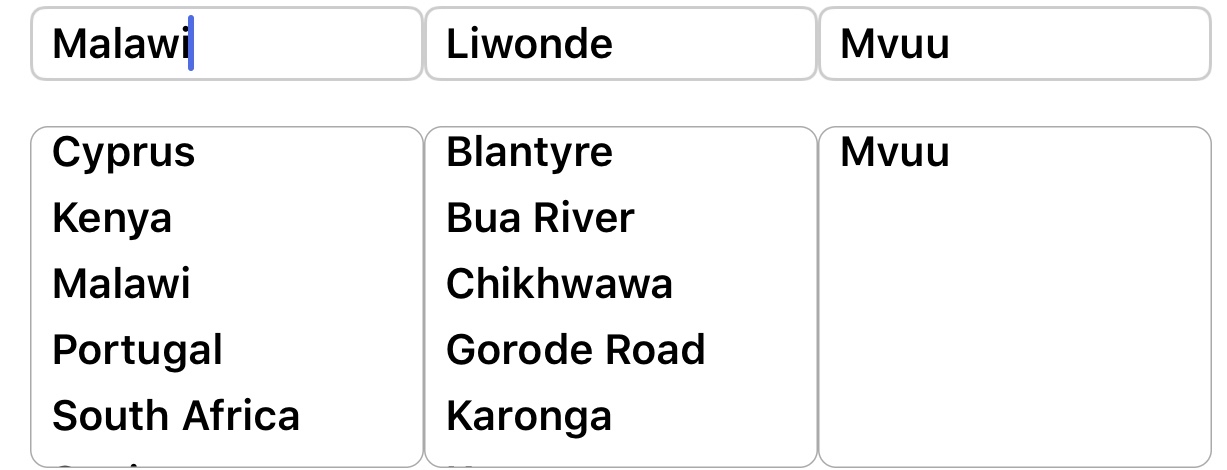
Tap on any of these fields to open the selection lists which you can use to construct a location from the locations you have used in the past. These must be selected from left to right. You can also type information in directly.
The Comment field allows you to add additional information such as the sex, maturity, number observed etc.
Acquire GPS, tap to insert your current GPS position. If your camera has GPS hardware then the location will be taken from the photograph.
Tap Bird Data to search for information about a bird in the Clements Checklist of Birds of the World. This will populate fields: English Name, Scientific Name, Family and Range.
Note that the Scientific Name will be shown in blue, indicating a link to the Research page which enables you to find images from the Internet and compare them with your image.
Tap to select image to select a photograph and create a thumbnail for the sighting.