The files used by My Bird Album to store and manage your sightings can be accessed using either iTunes file sharing or The Finder. iTunes is used on Apple computers running macOS prior to Catalina and on computers running Microsoft Windows. The Finder is used on Apple computers running macOS Catalina or later.
Copying the files used by My Bird Album to a computer is used to back up your sighting information or as part of the process for copying your sightings to another iOS device.
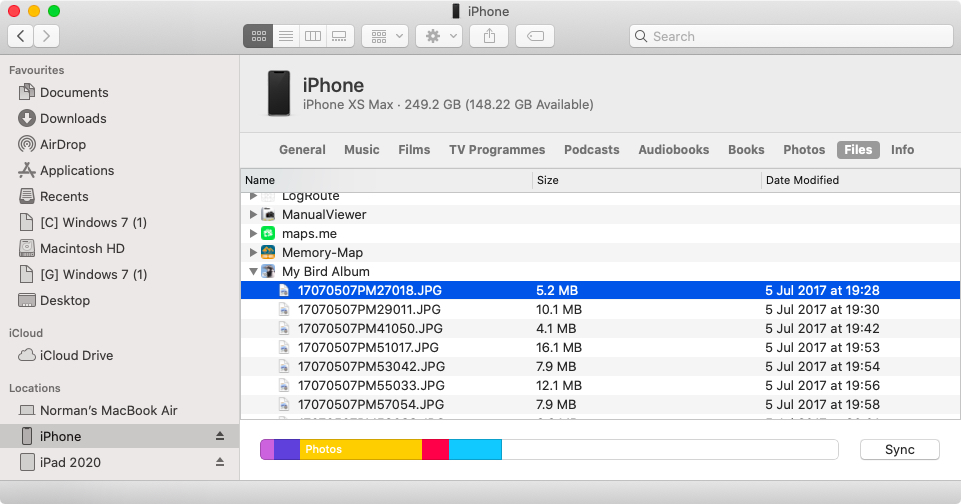
Locating My Bird Album files using The Finder.
Connect your apple devices to your computer using the appropriate cable or WiFi.
Open The Finder on your Mac.
In the sidebar on the left side of The Finder window click on your device.
Click on the Files tab, or Files on the pull down list, to see the list of apps that are enabled for file sharing.
Scroll through the list of apps to find My Bird Album.
Click on the triangle next to My Bird Album to open the list of shared files.
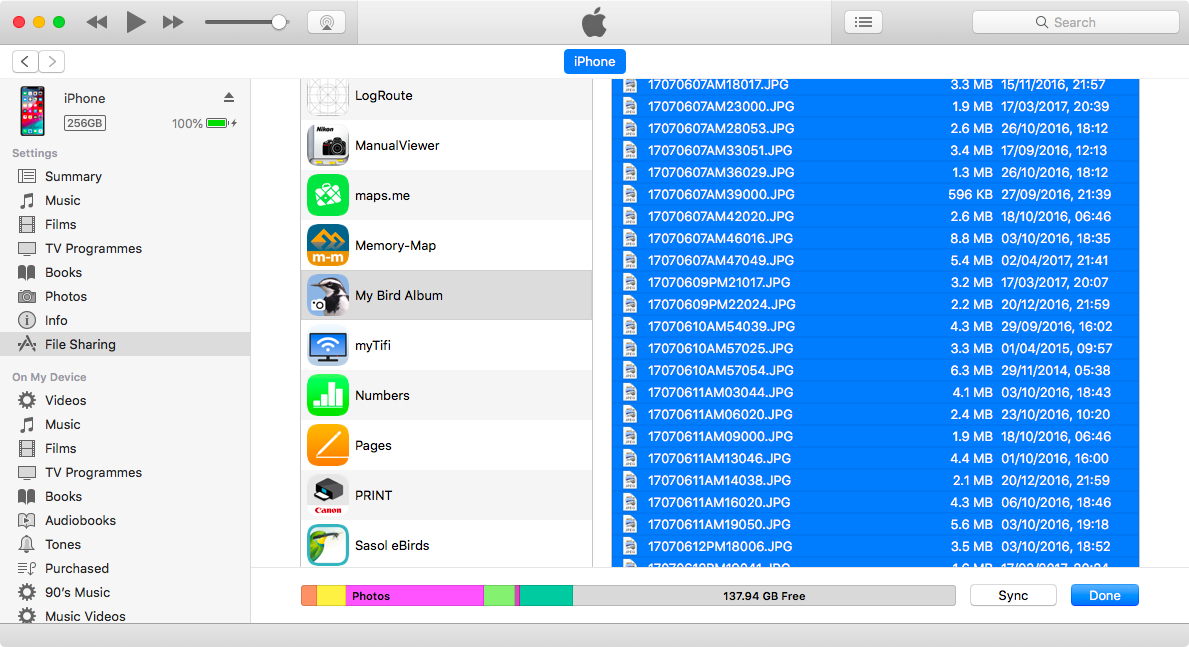
Locating My Bird Album files using iTunes.
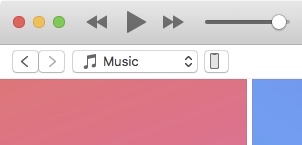
Open iTunes on your computer and tap on the icon representing your device.
In the sidebar on the left of the iTunes window click File Sharing.
Scroll through the list of apps to find My Bird Album.
Click on My Bird Album to open the list of shared files.
Copy My Bird Album sighting files to your computer
Click on any file in the list of My Bird Album files in either The Finder or iTunes then press Ctrl A to select all files.
Drag the selected files to a folder on your computer to create the backup copy.
Copy "My Bird Album" sightings to another iOS device.
This process assumes that you have already copied My Bird Album files to your computer.
If the My Bird Album app is open on the device you are copying the files to close it.
Click on any file in the list of My Bird Album files in The Finder or iTunes then press Ctrl A to select all of the files.
Delete the selected files.
Select all of the files in your backup copy.
Drag the selected files to the device your are copying to in The Finder or ITunes window.